

Your WSQ certificate is stored digitally in your MySkillsFuture account. Once SSG updates your record after your assessment, you can download it any time no need to call anyone or visit an office. This guide walks you through the current portal step by step.
Go to the MySkillsFuture Course Portal
Open your browser and go to courses.myskillsfuture.gov.sg. Make sure you are on the correct URL not the older myskillsfuture.gov.sg. The interface looks different and some steps may not match this guide.
Open courses.myskillsfuture.gov.sg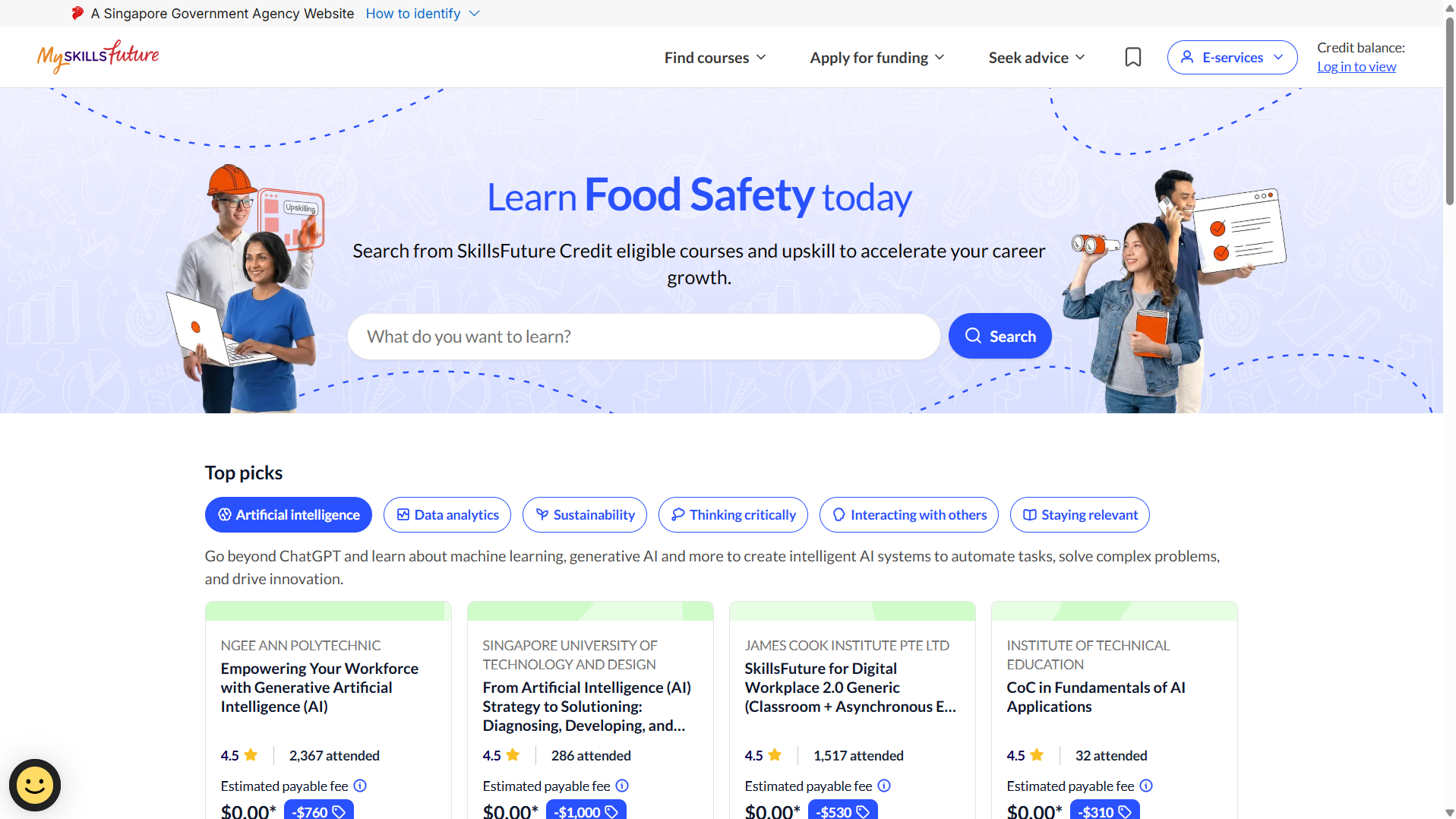
Click E-Services
Look for the E-services button at the top right corner of the page. Click it and a dropdown menu will appear with several options.
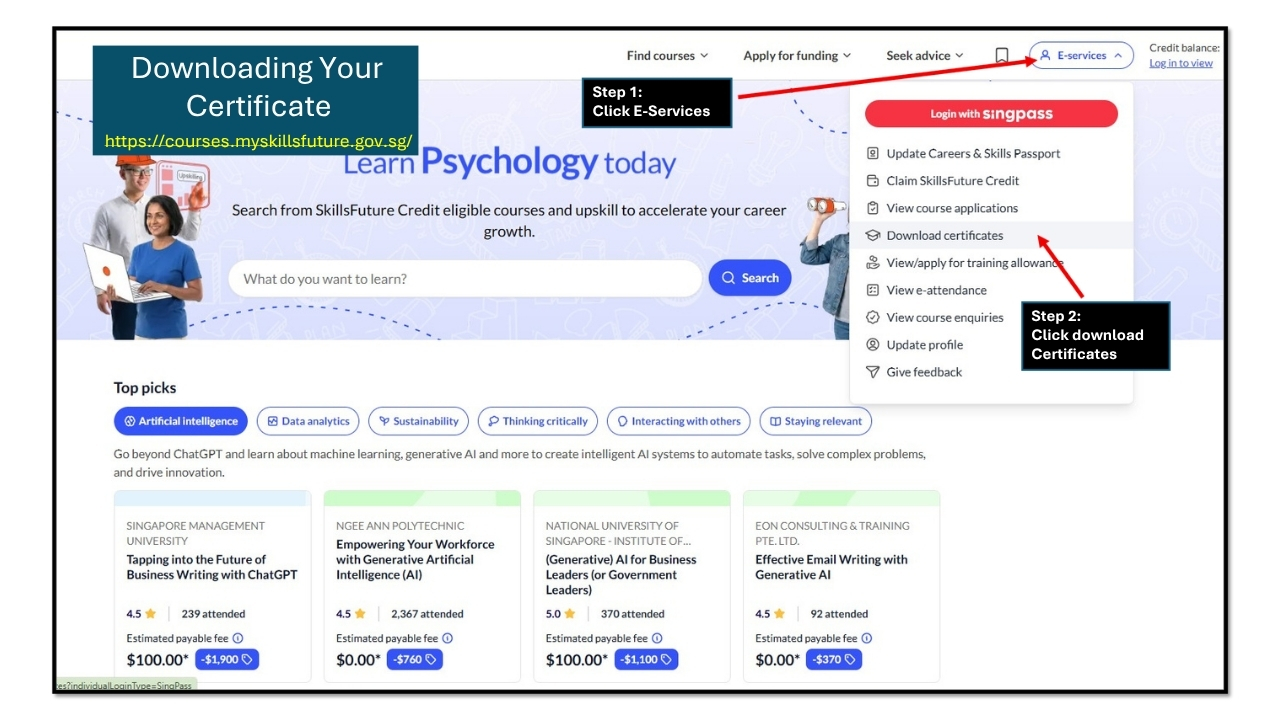
Click Download Certificates
In the dropdown, click Download certificates. The page will redirect you to Singpass for login.
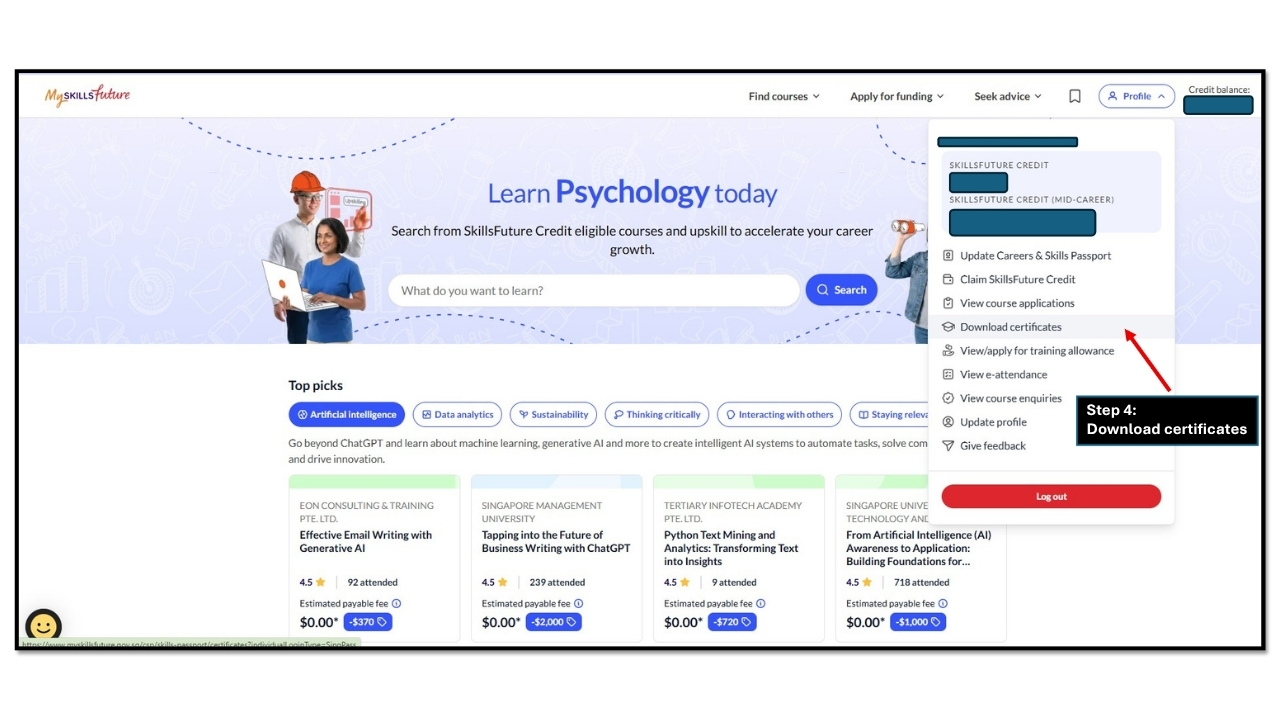
Scan the QR Code with Singpass
Open your Singpass app and scan the QR code on screen. You are logging in to your Careers and Skills Passport.
No Singpass app? Click Use password to log in with your Singpass ID and password instead.
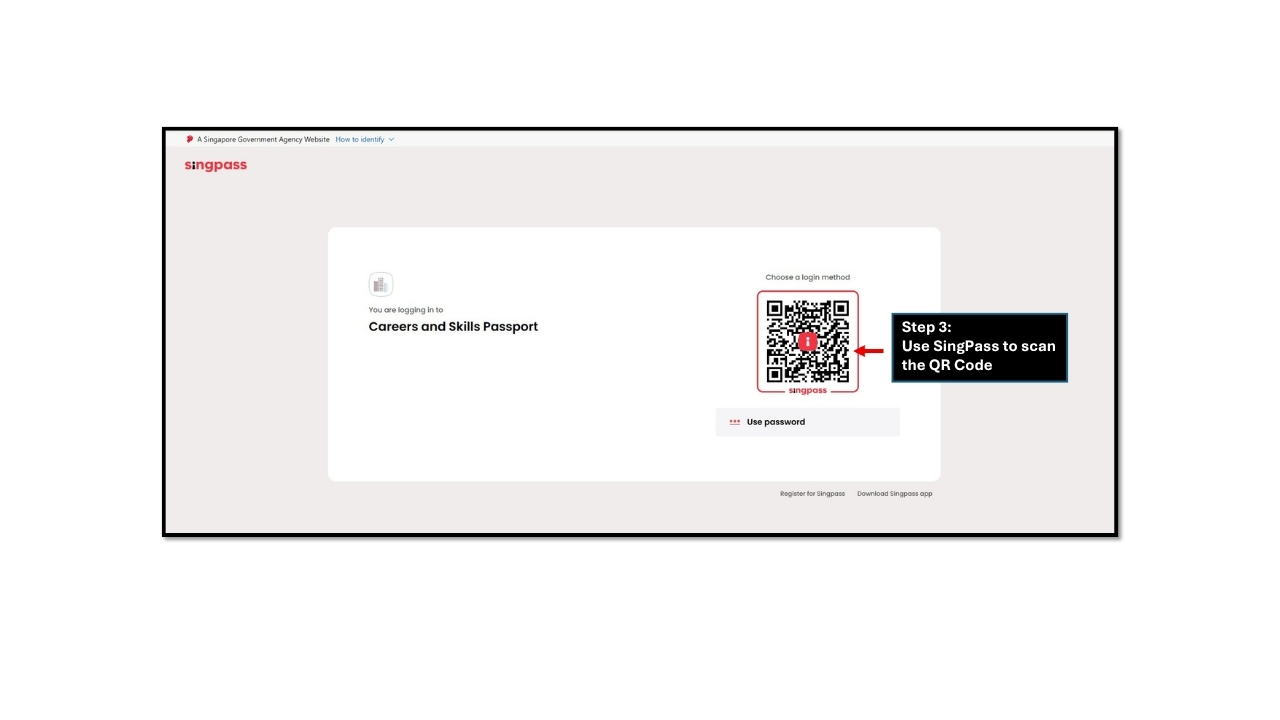
Click Your Profile then Download Certificates
After logging in, click Profile at the top right. The same dropdown appears again. Click Download certificates from the list.
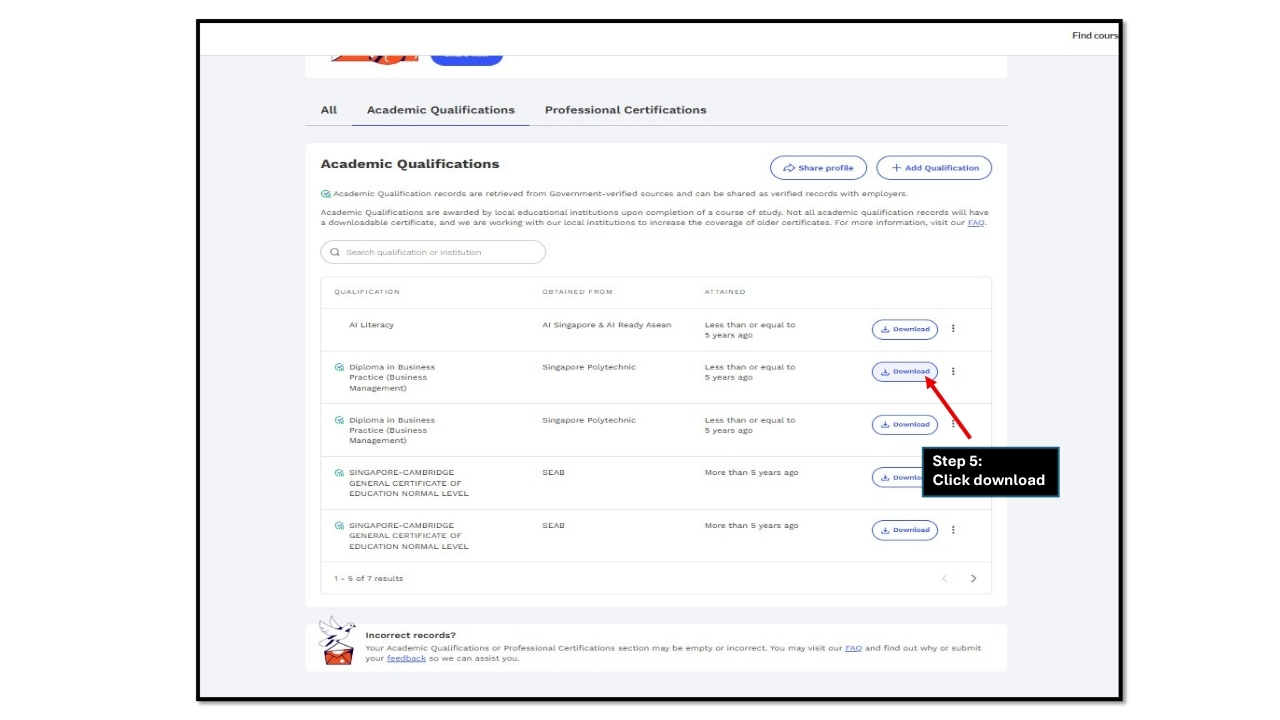
Find Your Course and Click Download
Your completed courses appear as a list. Find the course you want and click the Download button on the right.
Not seeing your WSQ course? Check the Professional Certifications tab at the top WSQ certificates are listed there, not under Academic Qualifications.
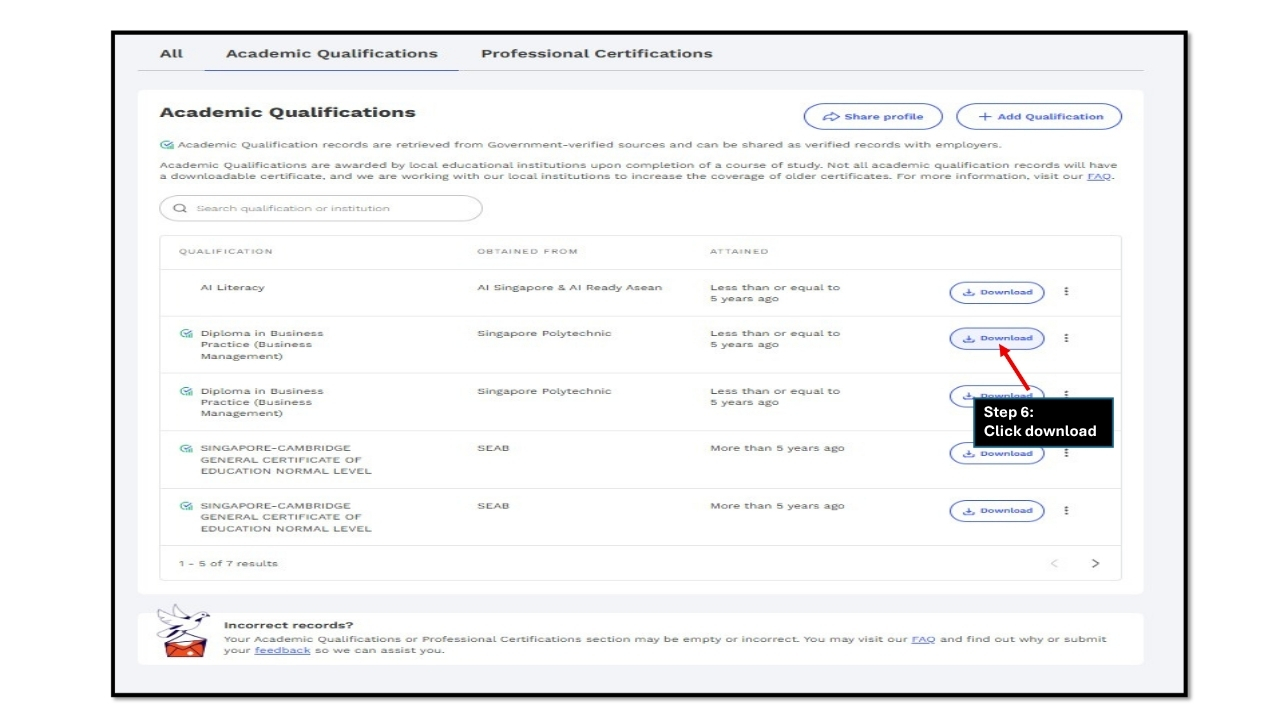
Click Download Again to Confirm
A second Download button appears below the row you selected. Click it again to move to the certificate selection screen.
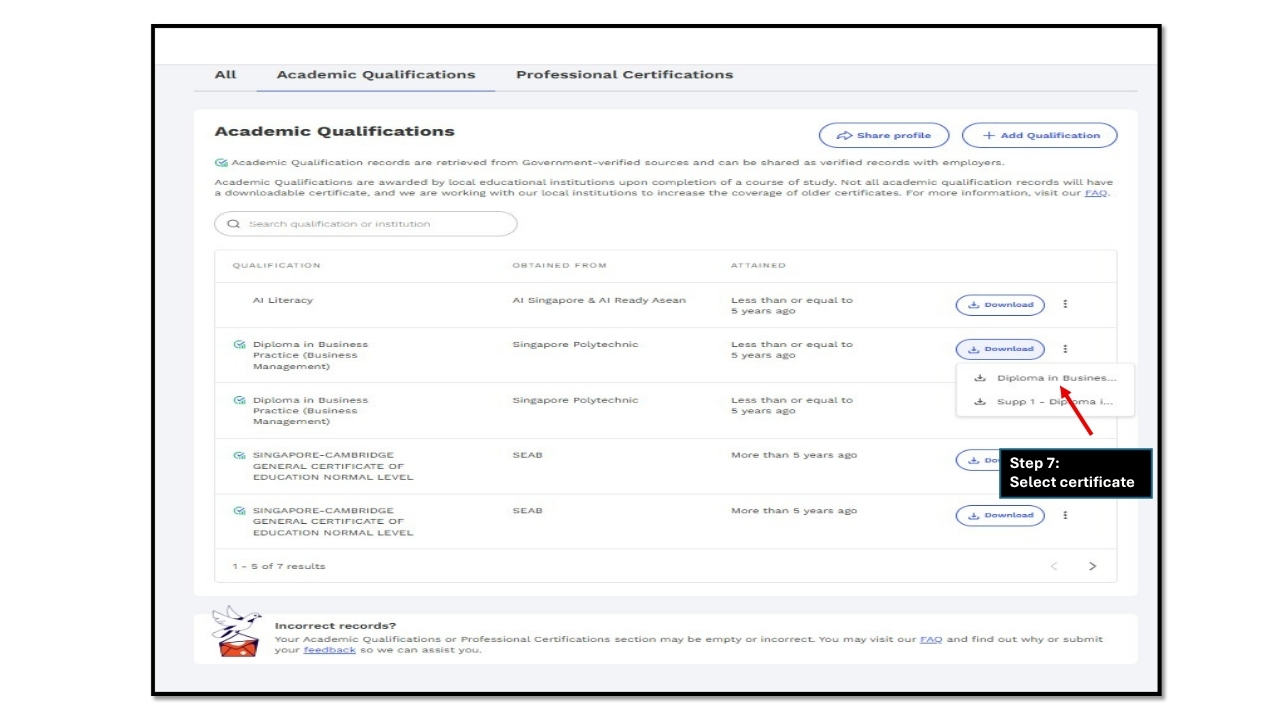
Select Your Certificate
A small dropdown shows the certificates available for that course. Click the one you want. It will open in OpenCerts.
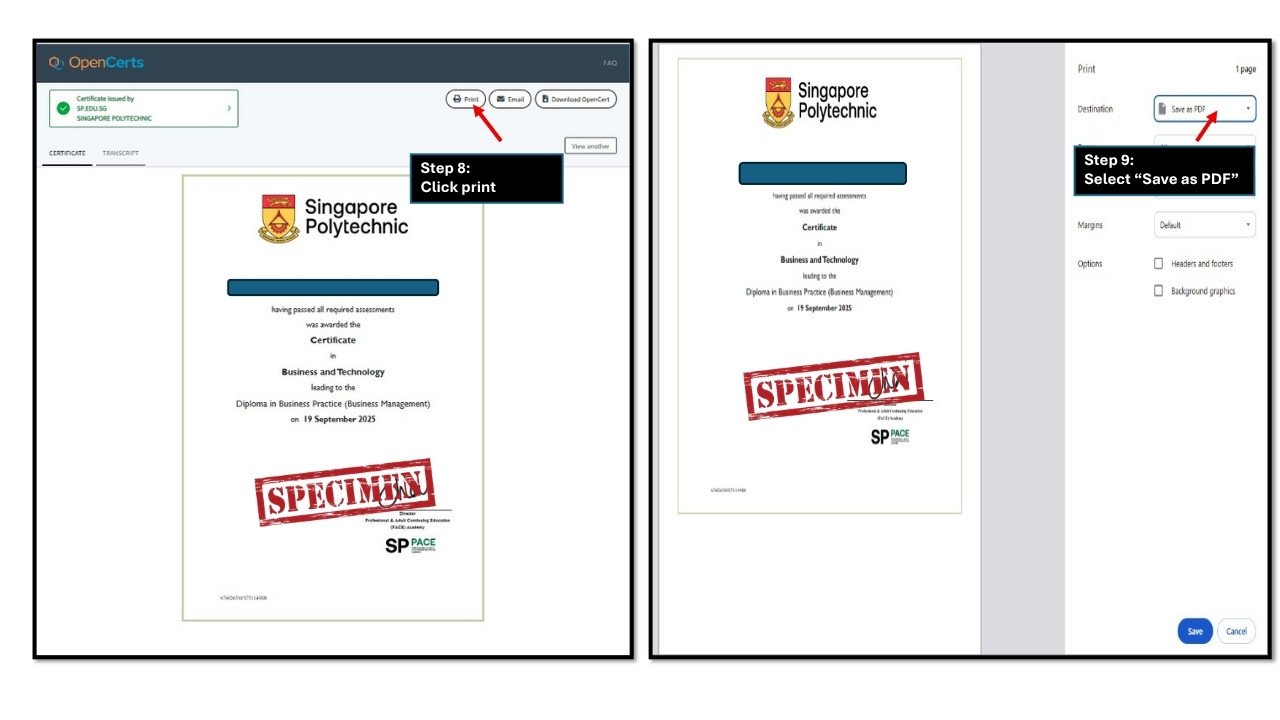
Click Print and Save as PDF
On the OpenCerts page, click Print at the top. In the print dialog, change the Destination to Save as PDF. Click Save your certificate downloads to your device.
If your certificate is still not appearing after 5 working days, WhatsApp us your full name and NRIC. We will check with SSG and get back to you the same working day.
Frequently Asked Questions
Need to register for a course first?
You can only download a certificate once you have completed and passed the assessment. Check our current course schedule to get started.
 WhatsApp us