

⚠️ OBSE & PRSF are MANDATORY — No OBSE = Can't Work | No PRSF = Rank Downgrade. Enrol Now!
⏳ Time remaining:
220
d
00
h
00
m
00
s
ETANN Search Popup
×

Search ETANN Academy

🔍

How to Download Your WSQ Certificate from MySkillsFuture

A walkthrough of the new MySkillsFuture portal, screen by screen.

Your WSQ certificate is stored digitally in your MySkillsFuture account. Once SSG updates your record after your assessment, you can download it any time no need to call anyone or visit an office. This guide walks you through the current portal step by step.

Certificate not showing up yet? Give it 3 to 5 working days after your assessment date. If it has been longer, WhatsApp us your name and NRIC and we will follow up with SSG for you.
Updated July 2026. This guide reflects the current interface at courses.myskillsfuture.gov.sg. The older myskillsfuture.gov.sg portal has a different layout.
1
Go to portal
2
E-Services
3
Download Certs
4
Singpass QR
5
Profile menu
6
Find course
7
Confirm
8
Select cert
9
Save as PDF
Step 01 of 09

Go to the MySkillsFuture Course Portal

Open your browser and go to courses.myskillsfuture.gov.sg. Make sure you are on the correct URL not the older myskillsfuture.gov.sg. The interface looks different and some steps may not match this guide.

Open courses.myskillsfuture.gov.sg
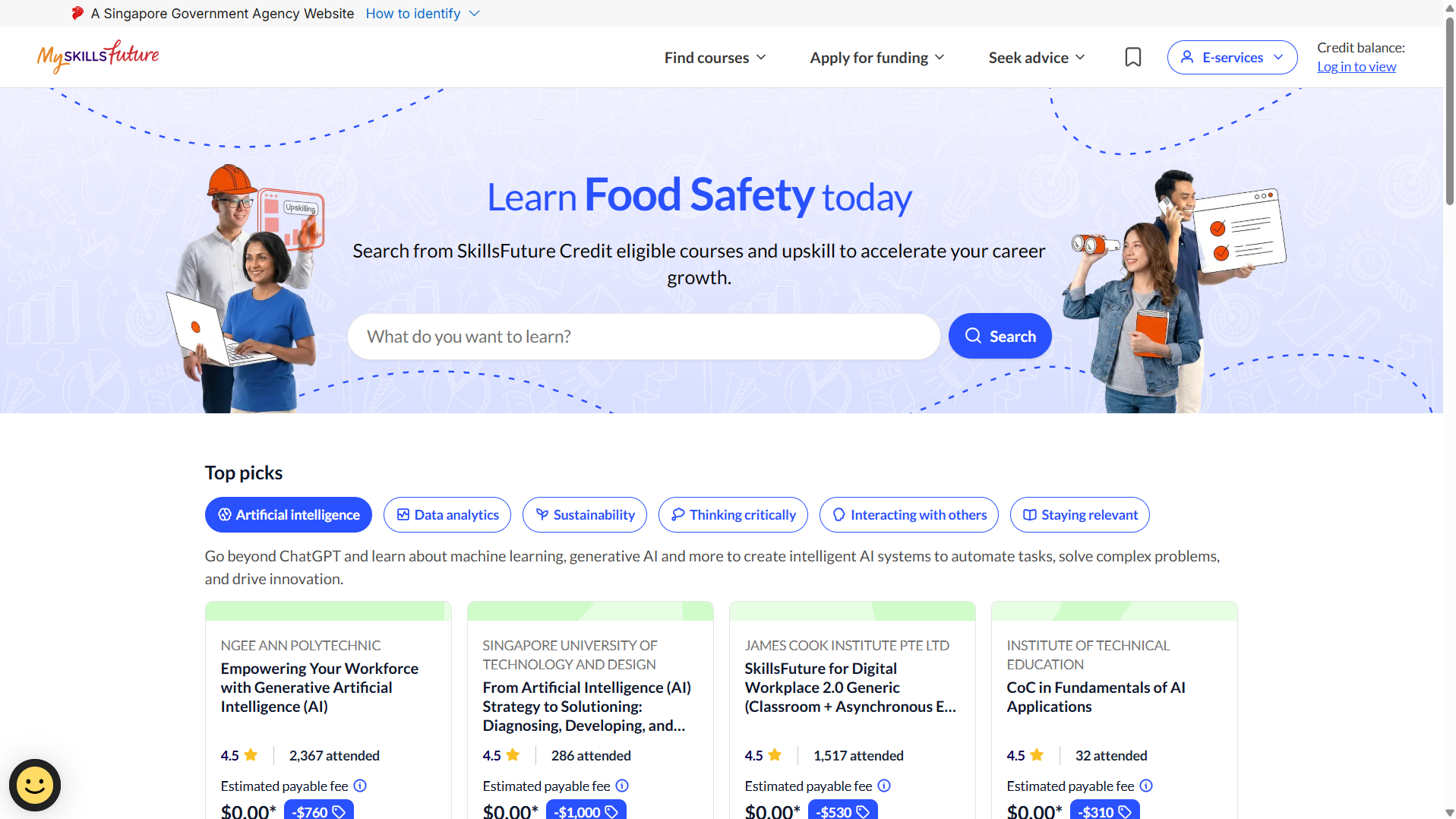
MySkillsFuture course portal homepage showing Find courses, Apply for funding and E-services navigation with search bar
MySkillsFuture course portal homepage
Step 02 of 09

Click E-Services

Look for the E-services button at the top right corner of the page. Click it and a dropdown menu will appear with several options.
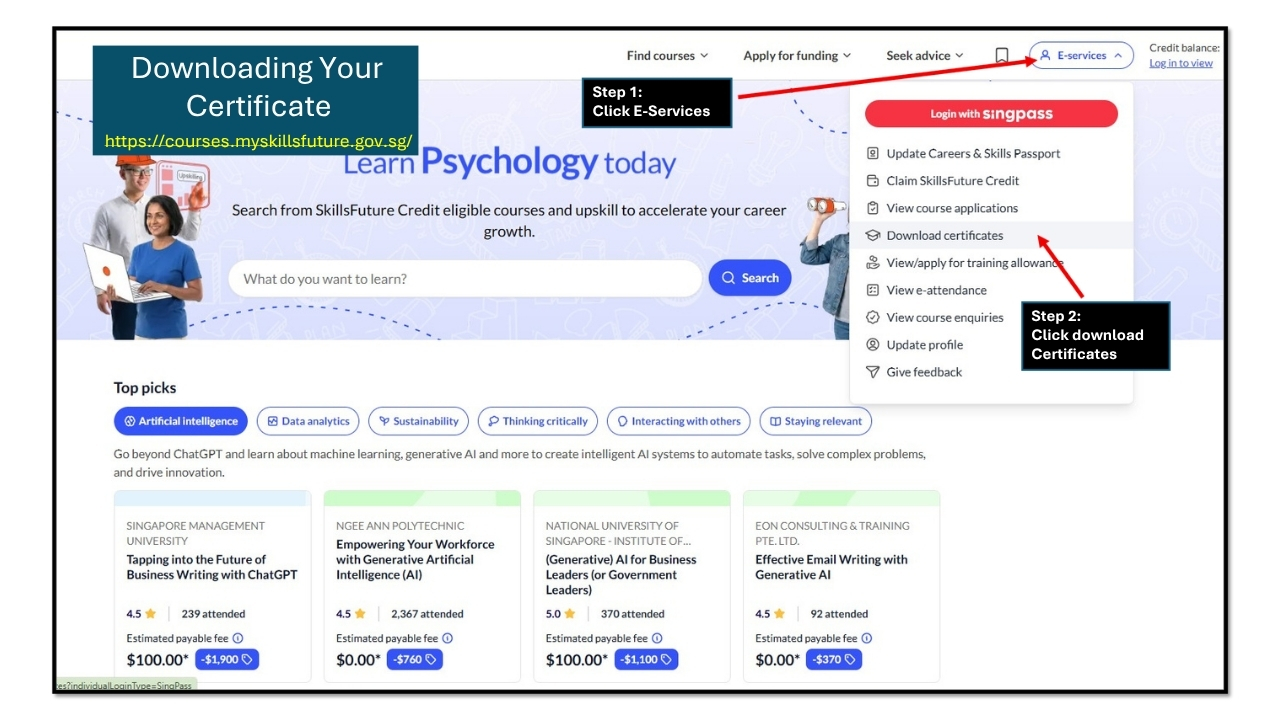
MySkillsFuture course portal homepage showing E-services button at top right with dropdown menu open
Click E-services at the top right of the page
Step 03 of 09

Click Download Certificates

In the dropdown, click Download certificates. The page will redirect you to Singpass for login.
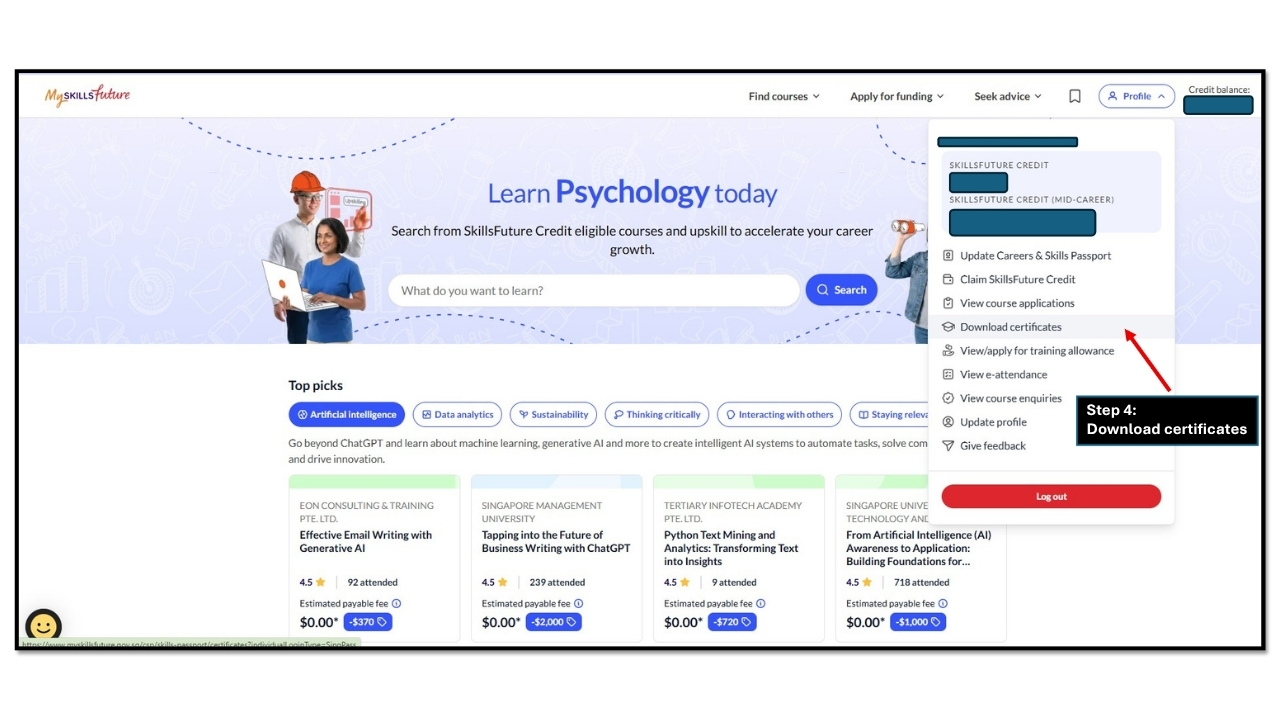
E-services dropdown menu showing Download certificates option highlighted with red arrow
Select Download certificates from the dropdown
Step 04 of 09

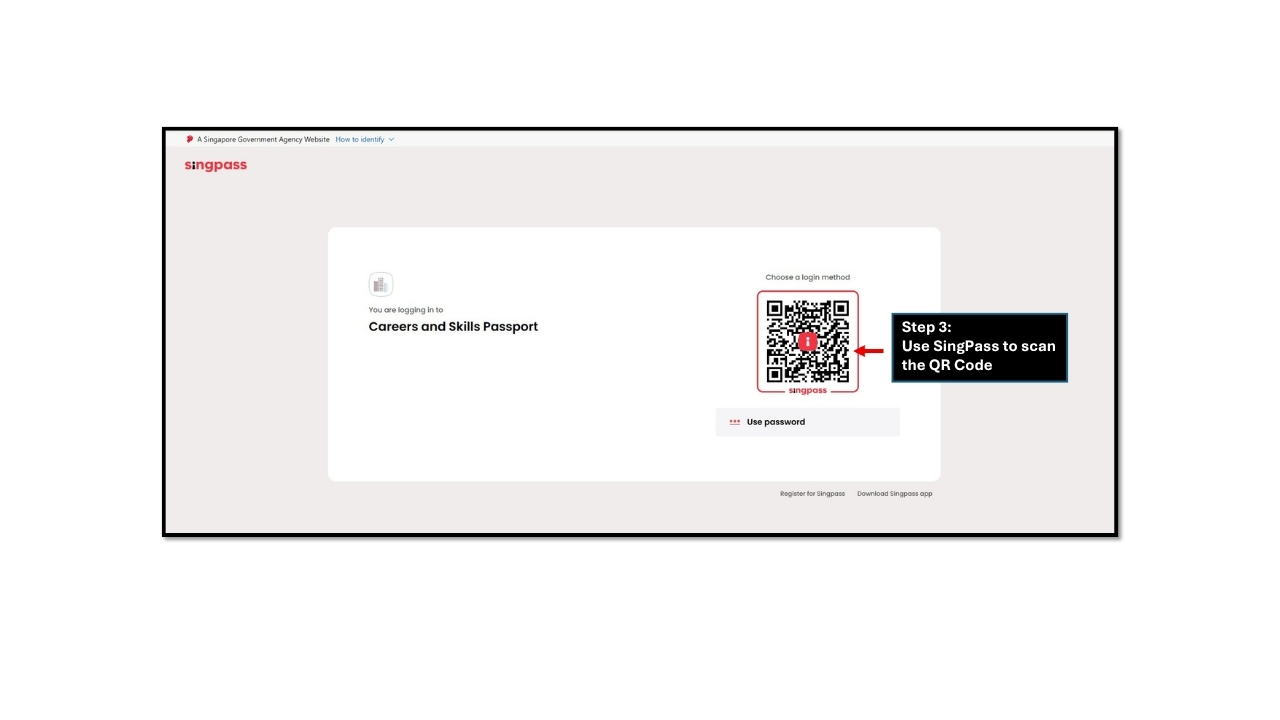
Scan the QR Code with Singpass

Open your Singpass app and scan the QR code on screen. You are logging in to your Careers and Skills Passport.

No Singpass app? Click Use password to log in with your Singpass ID and password instead.
Forgot your Singpass password? Use our Singpass Password Reset Guide before continuing.
Singpass login screen showing QR code to scan with Singpass app to access Careers and Skills Passport
Scan the QR code with your Singpass app
Step 05 of 09

Click Your Profile then Download Certificates

After logging in, click Profile at the top right. The same dropdown appears again. Click Download certificates from the list.
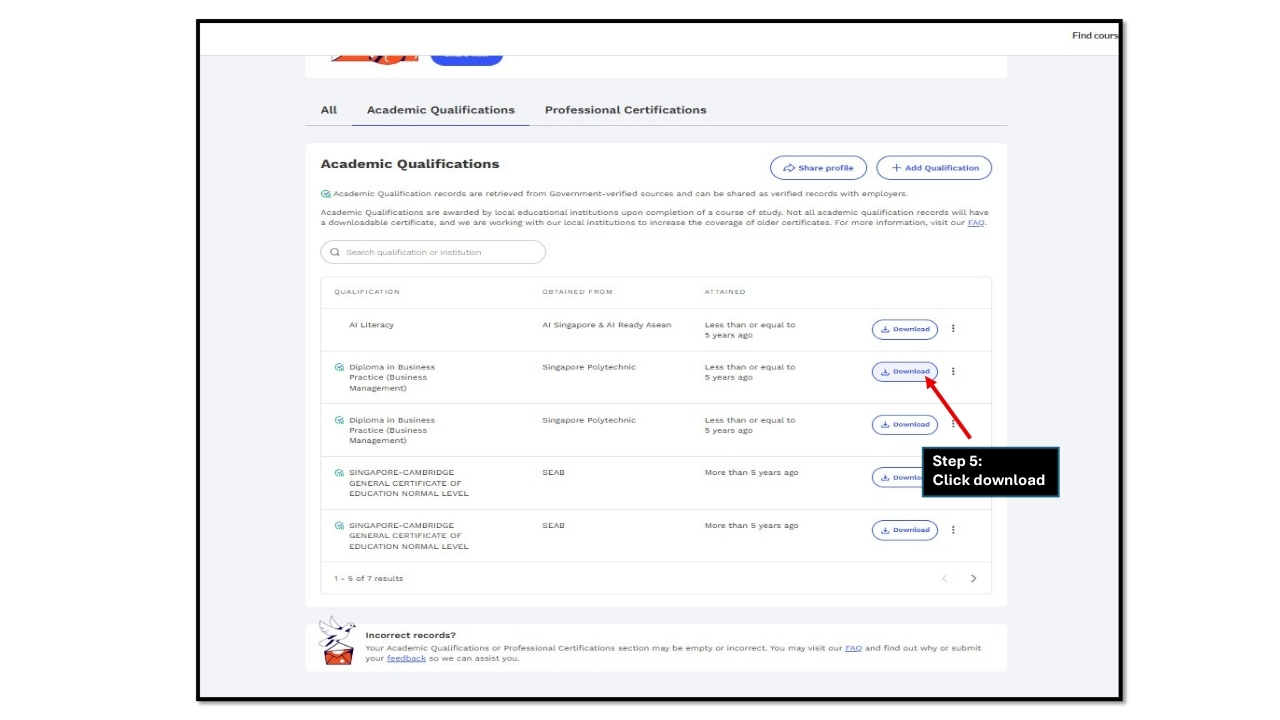
MySkillsFuture profile dropdown open after login showing Download certificates option with red arrow
Click Profile then Download certificates
Step 06 of 09

Find Your Course and Click Download

Your completed courses appear as a list. Find the course you want and click the Download button on the right.

Not seeing your WSQ course? Check the Professional Certifications tab at the top WSQ certificates are listed there, not under Academic Qualifications.
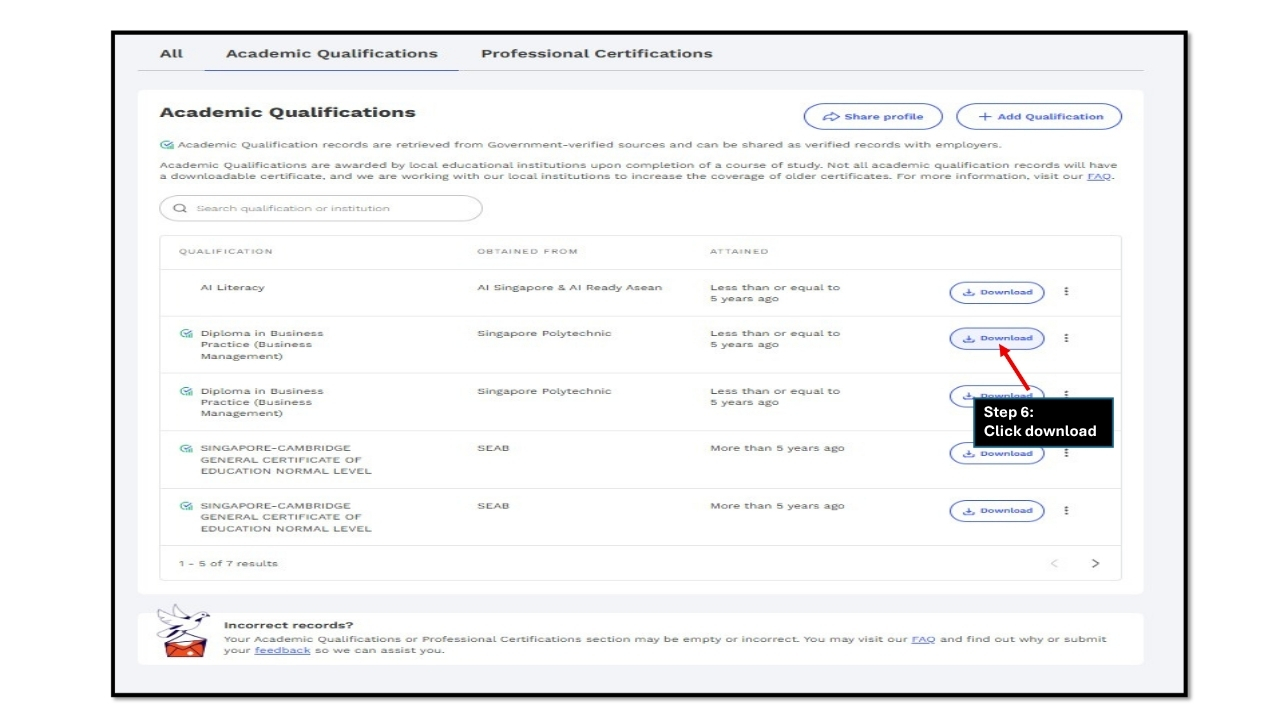
MySkillsFuture Careers and Skills Passport showing Academic Qualifications list with Download button highlighted
Find your course and click Download
Step 07 of 09

Click Download Again to Confirm

A second Download button appears below the row you selected. Click it again to move to the certificate selection screen.
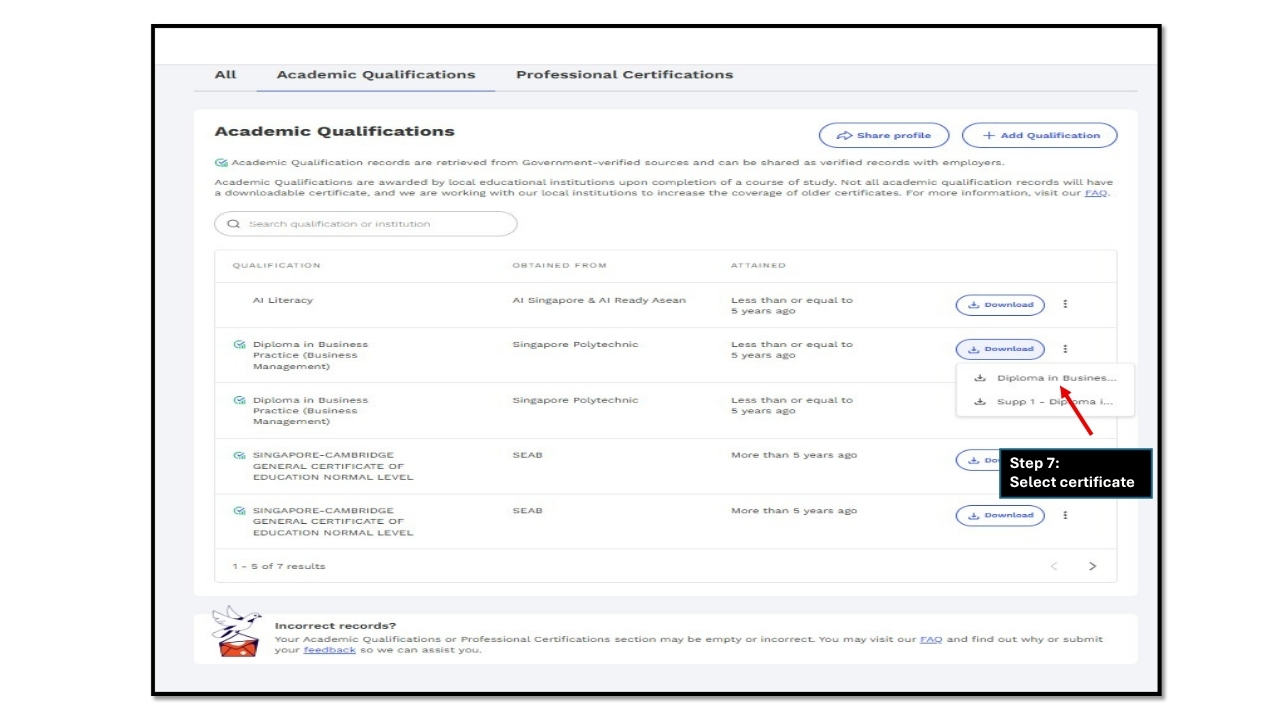
Qualifications list showing second Download button highlighted with red arrow to confirm certificate selection
Click Download a second time to confirm
Step 08 of 09

Select Your Certificate

A small dropdown shows the certificates available for that course. Click the one you want. It will open in OpenCerts.
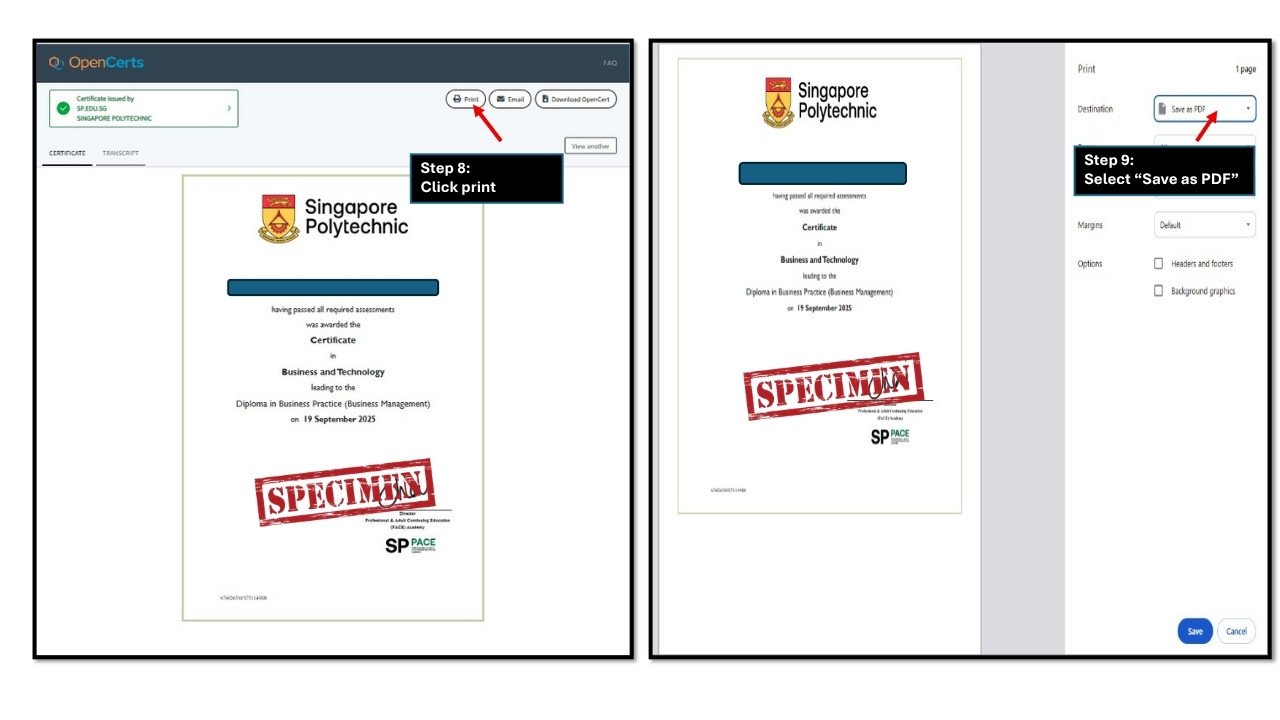
Certificate name dropdown showing specific certificate options to select before opening in OpenCerts
Select the certificate name from the dropdown
Step 09 of 09

Click Print and Save as PDF

On the OpenCerts page, click Print at the top. In the print dialog, change the Destination to Save as PDF. Click Save your certificate downloads to your device.

On your phone? Tap the three-dot menu and select Print or Share to save the certificate.
OpenCerts viewer showing Print button and browser print dialog with Save as PDF option
OpenCerts click Print then Save as PDF
Step 1 of 9
The digital certificate from OpenCerts is the official copy. Employers, security agencies, and PLRD all accept it. You do not need to print it unless someone specifically asks for a physical copy.

If your certificate is still not appearing after 5 working days, WhatsApp us your full name and NRIC. We will check with SSG and get back to you the same working day.

Frequently Asked Questions

SSG takes 3 to 5 working days to process your assessment result and update your record. If it has been more than 5 working days and your certificate is still not there, WhatsApp Etann Academy at 8733 1539 with your full name and NRIC. We will check with SSG directly and update you.
This usually means SSG has not fully processed your assessment result yet. It can also happen if there was an issue with your e-attendance you need at least 75% attendance recorded via the Singpass app for your result to be submitted. If attendance is fine and it has been more than 5 working days, contact us and we will investigate.
WSQ certificates are listed under the Professional Certifications tab, not Academic Qualifications. Click the tabs at the top of the Careers and Skills Passport page to switch between them. If it is not showing under either tab after 5 working days, WhatsApp us and we will follow up.
Yes. The OpenCerts digital certificate is the official document issued by SSG. Employers, security agencies, and PLRD all accept it for licensing purposes. You can share it as a PDF or send the OpenCerts link directly. No physical certificate is needed unless specifically requested.

Need to register for a course first?

You can only download a certificate once you have completed and passed the assessment. Check our current course schedule to get started.